
guys, pano ba napapatakbo yun SD Card sa mga lcd tv? sa hollywood disneyland kasi, ang standard issue nila duon eh Panasonic LCD TV with SD Card.
I tried viewing our photos taken the previous day from our SD card, ayaw lumabas and i cant find a menu to run a slideshow or somethin'
gusto ko sana yun Samsung LCD TV ngaun na parang Black Imac monitor kasi may built-in SD card slot, can this play photos as well as Divx/MPEG4 format videos
?

The Largest Car Forum in the Philippines
- Forums
- Discussions
- Events
- Community
Results 141 to 158 of 158
-

 BANNED BANNED BANNED

- Join Date
- Mar 2005
- Posts
- 8,837
March 24th, 2007 02:45 AM #141
-
BANNED BANNED BANNED
- Join Date
- Mar 2005
- Posts
- 8,837
March 24th, 2007 02:49 AM #142yup me too. although gusto-gusto ko na magka 32" lcd tv. deliberately dini-delay ko purchase. yun popular 27" na Kolin a year ago eh 85k. ngaun 32" nasa 59k na lang yun samsung. Originally Posted by CVT

then I just saw a 3Megapixel Philip LCD TV sa SM * almost 90k.
mukang not adviseable pa ngaun to buy kasi ang bilis mag-drop ng presyo ng LCD TV's. siguro before X'mas 42" na yun tig 50k hehehe
-
Tsikoteer
- Join Date
- Jun 2005
- Posts
- 866
March 24th, 2007 07:00 PM #143Saan pala inilalagay ang VGA cable? Sa may HDMI/DVI slot? or kailangan pa ng converter? Originally Posted by Odo
Oh and yeah, VGA gives you up to 1080p whereas component only limits to 720p/1080i
-
Tsikot Member Rank 4
- Join Date
- Jan 2007
- Posts
- 2,326
January 23rd, 2008 06:16 PM #144They still seem to be selling Plasma. I read somewhere that from oblique angles, plasma is still better than LCD -- cheaper, too.
-
 Tsikoteer
- Join Date
- Jan 2006
- Posts
- 12,398
January 23rd, 2008 08:08 PM #145LCD's have 170 degree viewing angles, even our "old" Magnavox. That's quite capable enough. Originally Posted by pup2
LCD's make great pc monitors too. After seeing a friend's pc with a dual monitor setup of a 32" and 46" LCD tv's, I'm sold on LCD.....
I tried it out earlier......

-
 Tsikot Member Rank 8
- Join Date
- Oct 2002
- Posts
- 21,433
January 25th, 2008 01:46 PM #146Newer LCDs have a viewing angle of 178 degrees side to side. Plasmas I think is 180 degrees?
But LCDs should be viewed at eye level, else the colors will tend to invert. Plasma don't have this problem.
-
Tsikot Member Rank 4
- Join Date
- Jan 2007
- Posts
- 2,326
January 25th, 2008 04:38 PM #147Yah. I tried viewing both from an angle and the LCD had some sort of distortion kahit viewable siya, unlike the plasma. At kung 40" pataas na, medyo malaki na ang price difference! Originally Posted by boybi
-
Tsikoteer
- Join Date
- Jan 2006
- Posts
- 12,398
January 25th, 2008 05:52 PM #148Well if we're talking about elevation angle, at what point does LCD becomes distorted? If I have to crank my neck up, then I'm too close. From normal pictureframe or portrait on the wall heights, I don't see distortion being a problem at all. I certainly haven't seen any distortion with the 32" Magnavox or any of the 19" LCD Mac and pc monitors (when used as a tv). Originally Posted by boybi
-
Tsikot Member Rank 8
- Join Date
- Oct 2002
- Posts
- 21,433
January 25th, 2008 08:43 PM #149I don't have a LCD TV, but with my 2 LCD monitors, when I stand up and look at them, the colors tend to change.
-
Tsikoteer
- Join Date
- Jan 2006
- Posts
- 12,398
January 25th, 2008 09:50 PM #150The same happens with my cheap Toshiba laptop. It doesn't take much movement of the LCD. Originally Posted by boybi
But both the 19" HP LCD of the Mac Mini and the 19" Samsung of my wife's pc need a considerably sharper angle before the colors change.
The Mac HP has a (non-current) Tsikot page while the pc Samsung is being used as a tv (tv tuner). Both hold their colors while my Toshiba laptop shifts pretty bad. The colors on the Magnavox 32" holds up better than the two monitors.

-
 Tsikot Member Rank 3
- Join Date
- Jul 2005
- Posts
- 1,113
February 11th, 2008 03:56 PM #151Google results for Plasma vs LCD doesn't really give definite answer. What i learned though is for 40" above, it would be Plasma. 37" and below, LCD is the way to go. For Movies, Sports - Plasma. For games, picture slideshow - LCD.
If i have 100K+ to burn on TVs alone i'd get these two:
Panasonic 42" Plasma TV TH42PV70 - P55K
Sony 32V300 - P54K (with home theater + wireless headphone) OR
Hitachi L32A01 - P38K
Plasma for my home theater, LCD for everything else
Sarap mangarap.
-
 Tsikot Member Rank 4
- Join Date
- Jun 2006
- Posts
- 2,027
February 11th, 2008 06:01 PM #1521080p hdtvs (FULL/ULTRA HD) costs almost twice as much as the common 780p/1080i right now
 . kelan kaya bababa presyo nito?
Last edited by Negus; February 11th, 2008 at 06:15 PM.
-
Tsikot Member Rank 4
- Join Date
- Jan 2007
- Posts
- 2,326
February 13th, 2008 12:38 AM #153I just got a 42" Hitachi plasma for less than 70k. I hope it's durable -- too bad it's for the company and not for me. I STILL don't want to spend that much mega bucks for a TV.

-
Tsikot Member Rank 3
- Join Date
- Jul 2005
- Posts
- 1,113
February 13th, 2008 02:15 PM #1541080p, 780p, 1080i...would it really matter to you? Here's a very informative post from the playstation boards: Originally Posted by Negus
http://boardsus.playstation.com/play...=938503&page=1
continued on next post..Okay, it's time for another of my informative posts... If you've seen any of my other posts:
Understanding HDMI cables and why cheap ones work perfectly
Ground loop causing horizontal bars and/or buzzing
You know that I'm a broadcast engineer and live and breath this stuff every day. As part of my trade I have to keep up with TV's, broadcast signals, HD signals, etc. So I've been able to bring some of my knowledge to these boards and help others get informed on various topics.
With that in mind, since I've been seeing a ton of these types of questions asked lately, I thought I should create a post dedicated to giving some answers... So with that said, let's proceed...
"Should I run 720p or 1080i", "What's the difference between 1080i and 1080p", "Should I get 1080p or just 720p", "Will I notice a difference between X and Y", etc...
These are all questions I see asked all the time... The problem is... There is no one fixed answer. It depends on a lot of various factors, and the only way to really be able to answer this question is by understanding what the differences are... So here we go, let's get into the fun stuff...
Section A: Resolution
The first thing you have to understand is the resolution of your TV set. A recent HD set (microdisplay LCD, DLP, LCoS, or Plasma, or directview LCD) can have one of three resolutions.. 480 lines of resolution, 720 lines of resolution, or 1080 lines of resolution.
Now your first thought may be that "bigger is better"... The more resolution, the more detail, and hence, the better the picture. The problem is, that doesn't really apply. Here's why... The smaller your TV set, the smaller a given number of pixels will become... Once they get below a certain size, then it just doesn't make any difference if they get any smaller.
For example... Take a look at this... Let's say you have a massive 350" monitor that your viewing this message on... If we were to walk up to the screen and take a look at . <-- that's a period... We might see that it looked like this for whatever resolution you were running at:
++++
++++++
++++++
++++
See... A nice rounded period... Looks good, decent detail.... If we count up the pixels that it's made out of, we see it's made of 20 pixels...
Now let's say on the SAME 350" monitor, we drop down to a resolution that's half of what we were running before... Now if we go up close and look at the SAME period, we might see it looks like this....
+++
+++
Now it's not so nice and rounded, doesn't have as much detail, and in general just doesn't look as nice... This seems to support the "more resolution is better" theory... But here's the problem... We're looking at this UP CLOSE on a 350" display...
Now let's say your using a nice 19" monitor right now.... Take a look at this . <--- another period...
That period (depending on your resolution) might be made of say 4 pixels... Would it matter if you switched resolutions to 38928282x3892202??? Nope, even if that period was made up of 100 pixels instead of 4, because it's so small to begin with, it's going to look EXACTLY the same... The extra detail might be lost, but it's lost on a level your eyes can't see to begin with...
With that in mind, that's why a set with a maximum 720 lines may be just as good as a set with a maximum of 1080 lines... Depending on it's size... Once the pixels get so small, it doesn't matter if the detail is lost anyway... Of course this varies based on your eyesight, and also the size of the screen vs your viewing distance. In fact, here's a really nice chart that demonstrates how resolution relates to viewing distance and tv size...

So as you can see, let's say your buying a 40" TV... The ONLY way you'll be able to tell the difference between a 1080 lines of resolution and 720 lines of resolution is if your sitting 5ft away or closer... If your buying a 50" TV, it's about 7 ft... 60" makes it about 7.5 to 8ft... So the honest truth is, in most peoples living rooms at normal viewing distances, you won't see the advantage of 1080 lines of resolution anyway.
Now, before we move on to interlaced vs. progressive, there's one other thing I'd like to point out that most people don't realize...
I've heard a lot of people say "I have XXX tv, and when I switch to 1080i I see a big difference in picture quality vs. 720p" Almost 98% of the time you see this statement, it's flat out false... In fact, it's IMPOSSIBLE in most cases for them to see a difference... Here's why...
If you have a microdisplay TV (i.e. DLP, LCD, or LCoS), or MOST plasma's and directview LCD's, and it DOESN'T say that it's 1080p, guess what? The MAXIMUM resolution it will support is 720p... Now I can here some people now, "That's bullcrap! I set my stuff for 1080i all the time"... Sure you do... That's because it WILL accept a 1080i signal, but the problem is, the display chip inside it only has 720 lines of resolution, so that 1080i signal just get's downscaled to 720p before it's displayed anyway... So switching between 1080i and 720p will have NO effect on the picture quality, other then 1080i will introduce motion artifacting which will make it look worse! (we'll get to this in a moment)...
If you have a CRT set, your LUCKY if it get's 720 lines of resolution.. Most don't support even that. They accept the signals, but can't really display anywhere near the level of detail that a microdisplay or plasma or directview lcd can... Now again, there's probably someone barking that their CRT set looks better then xxx set... This is BECAUSE of the loss of detail...
This is the same reason photographers have been shooting portraits with "soft focus" lens and/or filters for years... Because the DETAIL of a persons face RARELY ever looks "good"... The soft focus "blurs" the image, which looks MUCH more pleasing... The same applies with CRT sets... The "blur" or "softening" effect they have on signals often makes BAD signals look MUCH better... However, get a GOOD HD signal and it won't even come close to comparing....
So in other words, just because your set will ACCEPT a 1080i input, doesn't mean it DISPLAYS 1080 lines of resolution, almost CERTAINLY it displays 720 lines...
Now... The next half of what you need to understand is interlaced vs. progressive... So let's move on...
-
Tsikot Member Rank 3
- Join Date
- Jul 2005
- Posts
- 1,113
February 13th, 2008 02:22 PM #155continuation...
so i guess you have to stand 5 feet away from a 42" 1080p LCD/Plasma to fully experience its benefit.Section B: Interlaced vs. Progressive
Okay, to start this lesson off you have to understand frame rate... So let's start off with the magic number.... 60... You may or may not know that our electricity runs at 60hz... (i.e. the frequency of the sine wave of the AC current is 60hz, or 60 cycles per second)... (I'm speaking of US and other NTSC countries here)
Because of this, your TV will update it's picture on the screen exactly 60 times per second... That's it, plain and simple... It will ALWAYS be displaying 60 "images" on the screen in any given second...
Now let's say we have a video signal that's nothing but 4 lines of lines... If it's a PROGRESSIVE signal, it would be drawn like this...
1:----------
2:----------
3:----------
4:----------
each line 1 thru 4 drawn in that order, 1 thru 4... one right after the other... 60 times per second.... Each "full picture" is called a "frame"
If however that signal was an INTERLACED signal, it would be drawn like this....
1:---------
3:---------
followed by
2:---------
4:---------
each of those is 1/60th of a second... so 1 and 3 get drawn, then 2 and 4, that's 1/30th of a second... then 1 and 3 are repeated, then 2 and 4, etc... In other words, it's drawing EVERY OTHER LINE in each "picture" rather then ALL lines... Each "half picture" is called a field... 2 fields "add" together to make a "frame"...
Okay, so now that you understand that, let's describe some of the ATSC signals that are defined... There's actually a bunch (18 in total) but we'll just talk about a few...
720p: This is 720 lines of resolution, with a frame rate of 60 frames per second... This means ALL 720 lines are drawn in order every 1/60th of a second...
1080i: This is 1080 lines of resolution, with a FIELD rate of 60 fields per second... It takes 2 fields to make a frame, so therefore it's 30 frames per second, i.e. every FIELD takes 1/60th of a second and is only comprised of HALF the lines... 2 fields are drawn every 1/30th of a second, and "added" together by our eyes to get a single frame.
1080p: is of course 1080 lines of resolution, with a frame rate of 60 frames per second... All 1080 lines drawn in order every 1/60th of a second...
So.. .with this information in mind... You might be thinking... well... 1/60th of a second is way too fast for our eyes to see.... So even though each FIELD in an interlaced signal is only half the information, they still get "added" together by my eyes, so there's no difference between interlaced and progressive...
And as long as you were viewing STATIC images (i.e. non-moving pictures) you'd be ABSOLUTELY correct.... The problem is... We don't typically view non-moving images on a TV... There usually is movement involved, and it's this movement that causes the problem...
That problem is called "motion artifacting"... See, here's the thing... Let's say we have a box moving across the screen... Let's just look at a 1/30th second time slice...
If we have a progressive display, then in 1/30th of a second we'll get two frames... Those frames will look like this....(again simplified to 4 lines of resolution)
Frame1:
1:+----------+
2:+----------+
3:+----------+
4:+----------+
Frame2:
1: +----------+
2: +----------+
3: +----------+
4: +----------+
As you can see, the box looks great, and the motion is evident... As we start rolling through these frames we'll see it smoothly move across the screen....
Now let's take a look at an interlaced display... Iin 1/30th of a second (the same time slice) we now have two FIELDS instead of FRAMES... But remember, the box has moved the SAME amount in that 1/30th of a second as above... This means we'll see this...
Field1:
1:+----------+
3:+----------+
Field2:
2: +----------+
4: +----------+
You see, the box moves the same because that's based on the speed it was traveling.. However, because it now takes two fields to make a frame, and because each field is only half the information, our eyes put those two fields back together... That means that for our 1/30th of a second "frame" we see this...
1:+----------+
2: +----------+
3:+----------+
4: +----------+
See the problem here... Now if we expanded that out to 2 frames we'd see this...
1: +----------+
2: +----------+
3: +----------+
4: +----------+
So that's what you see moving across the screen instead of the nice "square" you see with progressive... The edges get "torn" between frames because of the "motion artifacting"...
This is why, especially for video games, interlaced is kinda bad...
Section C: Summary
So with this information in mind, it's easy to see why the choice can be so dependant on MANY variables...
What resolution is your tv REALLY capable of displaying?
If it's 720 lines of resolution native, then it's SILLY to feed it 1080i, since you'll STILL get 720 lines of resolution, it's just going to have motion artifacting... If your TV displays 1080 lines of resolution, but will only ACCEPT a 1080i signal, then you'll have to make a decision... Based on the chart above, will you see the difference between 720 and 1080 lines? If you WILL see a difference, then which is more important to you, a little added detail or the motion artifacting? If your TV displays and accepts 1080p, then it's a no-brainer.. 1080p all the way...
If you haven't bought a TV set yet, then should you buy 720p or 1080p? Again, it depends on the size of the screen you intend to buy and what your viewing distance will be (again, see chart above)...
If you DO decide to go for 1080p, MAKE ABSOLUTE SURE the tv actually ACCEPTS 1080p signals... a LOT of TV's were sold as 1080p tv's that would ONLY accept 1080i signals... They just upscale 1080i to 1080p which sounds great until you realize as above, you'll get the motion artifacting in it, so what's the point anyway?
-
Verified Tsikot Member
- Join Date
- Mar 2007
- Posts
- 98
-
turbo
- Join Date
- Nov 2002
- Posts
- 503
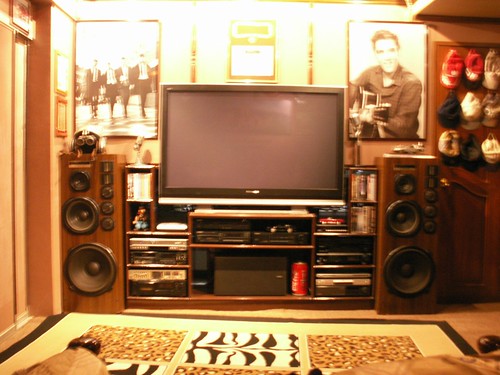
March 15th, 2008 06:55 AM #157I just got a 58 inch Panasonic Viera for my Home theater. The 58 Viera now renders my projector obsolete!
-
 Verified Tsikot Member
- Join Date
- Feb 2006
- Posts
- 137
March 21st, 2008 11:05 AM #158LCD and Plasma Price Watch
http://pinoydvd.com/board/index.php?topic=65921.810

 Reply With Quote
 Originally Posted by CVT

